Notebooks
Open and save .ipynb files, run cells, rich output and what is not Jupyter.
Open and save
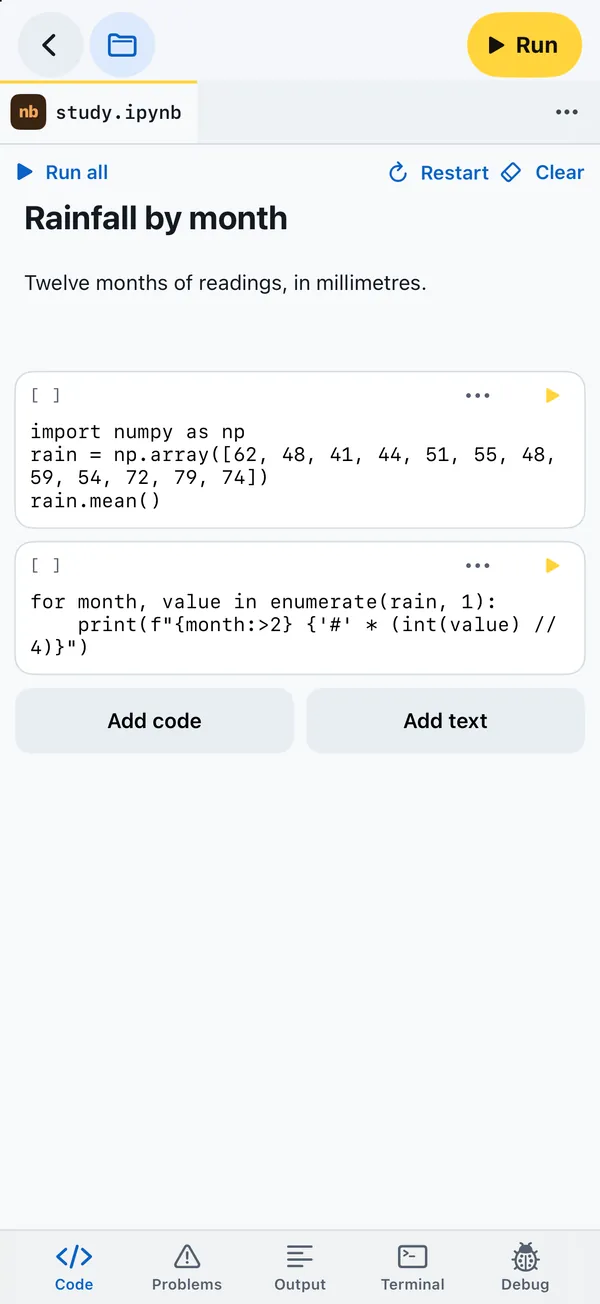
Tap any .ipynb file and it opens as a notebook. Changes are saved back to the same file, in the standard Jupyter format, a second after you stop editing, so the file opens in Jupyter, VS Code or on GitHub as usual. The Notebook template starts you off with a small study using NumPy. To add a notebook to a project, choose Notebook under Start from when you make a new file.
Cells
A notebook has code cells and text (Markdown) cells. Add code and Add text at the bottom add one. Text cells show formatted; tap one to edit it. Each cell's ⋯ menu has Move up, Move down and Delete.
Running
- ▶ on a cell runs it. Its number in brackets,
[3], says in which order cells ran. - Run all runs every code cell from the top, and stops if you stop one.
- All cells share one namespace, so a variable from one cell is there in the next, until Restart, which clears outputs and starts afresh. Clear clears outputs only.
- A cell you edit after it ran is marked Edited after it ran, so you know its output is stale.
Output
A cell shows what it printed, errors with their traceback, and the value of its last line as Out. Images in PNG form are shown. Objects that offer HTML, Markdown or SVG are saved with those forms in the notebook file, so Jupyter shows them, while Pythilo shows their plain text.