The editor and the key bar
Typing code on glass: the key bar, completion, problems, tabs and keyboard shortcuts.
The workspace
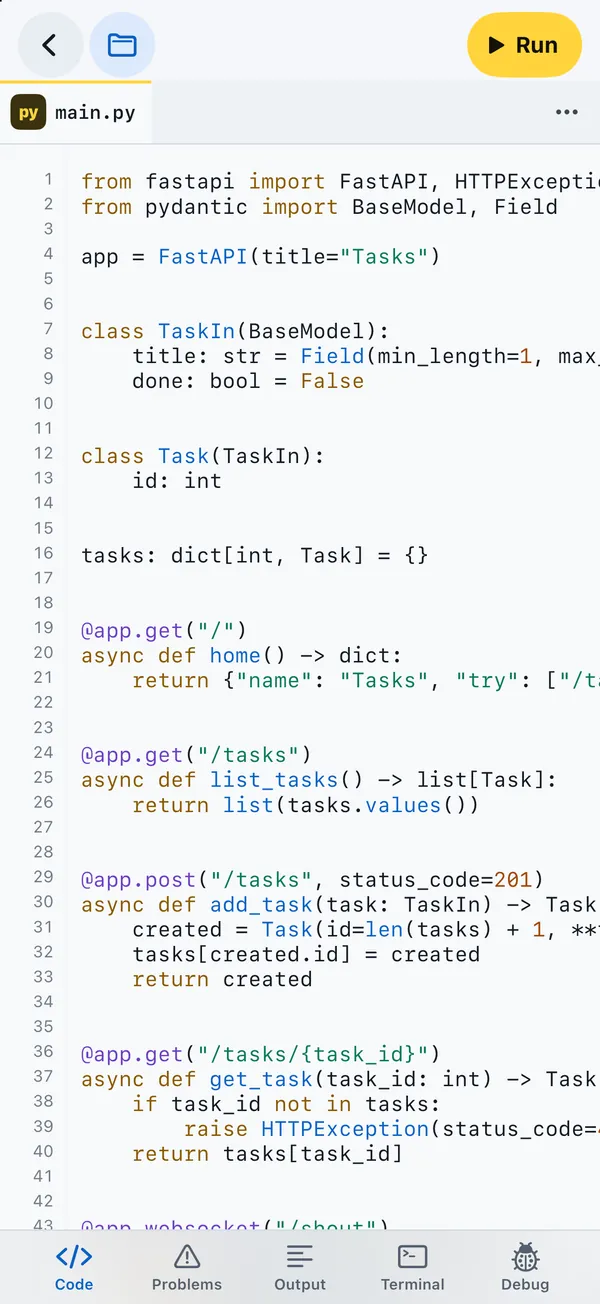
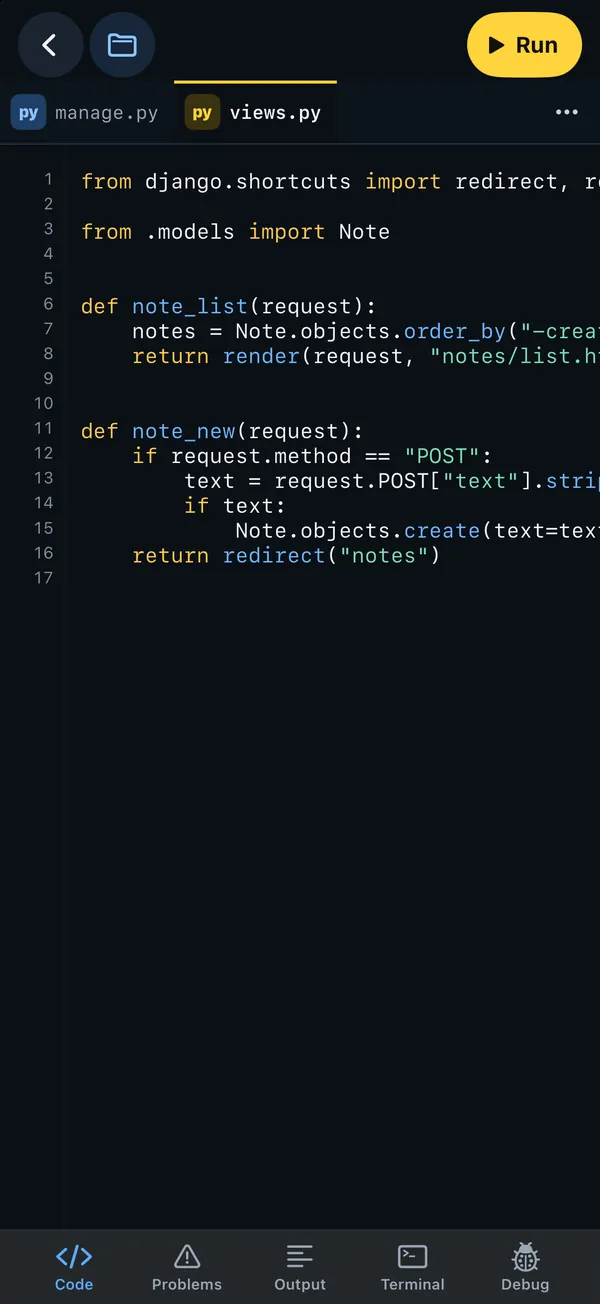
Opening a project shows the workspace. On an iPhone held upright, Back to projects and the files button sit at the top left, Run at the top right beside the camera, the open files as tabs below them, and the editor runs to the bottom edge. A dock at the bottom switches between five panels: Code, Problems, Output, Terminal and Debug. The dock hides while the keyboard is up. Other screen shapes arrange the same pieces differently; see Layouts.
The ⋯ menu beside the tabs holds the project actions: Packages, Web preview (while a server runs), Git, Share with an AI client or person, Share as a link, Debug, Run tests and Close for the current file.
The key bar
When the on-screen keyboard is up, a bar of keys sits on top of it. It scrolls sideways; the first and last keys stay put.
| Key | What it does |
|---|---|
| { } Complete | Pinned on the left. Asks for completions at the cursor, offline. |
| Tab (→|) | Inserts four spaces. |
| Punctuation | : ( ) [ ] { } = " ' # _ . , |
| Words | def self for if return import class, each with the space after it where Python needs one. |
| Operators | == != + - * / % < > @ \ -> := ** |
| Hide keyboard | Pinned on the right, in blue. |
Each key types exactly what it shows. Brackets and quotes are not paired automatically, so what you see is what is in the file.
Typing and indentation
The editor turns off the things iOS does to prose: autocorrection, automatic capitals, spell checking, and smart quotes and dashes, so " stays a straight quote and -- stays two hyphens. Undo and redo are the system's own (shake, three-finger swipe, or ⌘Z).
In Python files, Return keeps the current indentation, adds a level after a line that ends in :, (, [ or {, and removes one after return, pass, break, continue or raise. Lines do not wrap in the workspace editor; scroll sideways for long ones. (Lesson editors do wrap, with the rest of the line indented under its start.) The code size is set in Settings, from 10 to 24 points.
Completion
Completion comes from Jedi, running on the device. It knows the standard library, the packages Pythilo bundles, the ones you installed into the project, and your own modules. It appears a moment after you type a letter, a digit, _ or . in a Python file, as a small list of up to four suggestions marked ƒ function, C class, m module or v other. The Complete key on the key bar asks for it at any time.
Problems
Pythilo checks Python files as you type, about half a second after you stop. Syntax errors are listed as errors; pyflakes findings, such as an unused import or an undefined name, as warnings. The Problems panel groups them by file with the line number; tap one to jump there. The dock shows how many there are. A run that ends with an exception adds it to the list too, marked last run.
Tabs and quick open
Every file you open gets a tab; a dot marks unsaved changes. Touch and hold a tab to close it. Open a file (⌘P) searches the project by name. Files save themselves one second after you stop typing.
Keyboard shortcuts
With a hardware keyboard, such as an iPad Magic Keyboard:
| Keys | Action |
|---|---|
| ⌘R | Run |
| ⌘. | Stop |
| ⌘B | Show or hide the files |
| ⌘J | Show or hide the bottom panel |
| ⌘P | Open a file |
| ⌘S | Save all |
On an iPad with a keyboard attached, a small pill at the bottom right of the editor reminds you of them. Its keyboard button brings back the on-screen keys if you need the key bar.
Highlighted languages
Syntax colours cover Python (.py, .pyi), TOML, CFG and INI files, JSON and notebooks, Markdown, and HTML including Django and Jinja template tags ({{ }} and {% %}). JavaScript and CSS open as plain text.
.ipynb) open in their own view rather than the text editor. See Notebooks.